Apple Intelligence: What You Can Actually Do Right Now
The hands-on, phone-first post: the built-in features worth using, a Shortcuts automation you can build in five minutes, and which parts are genuinely useful. Part 5 of a 6-part series on Apple Intelligence.

This is Part 5 of a 6-part series on Apple Intelligence. Start with Part 1: What Is Apple Intelligence? if you missed it.
Four posts of theory earned this one. Here’s what I actually turned on and kept using, and the one that surprised me: a Shortcut that runs an AI prompt with the network off, on the phone in my pocket, for free.
So this post is the practical one. Some of it is built into apps you already open every day. The part I find most interesting is the automation piece near the end, where you get to pick which model answers you.
The built-in stuff you already have
None of this needs setup beyond turning Apple Intelligence on in Settings (and a supported device: iPhone 15 Pro or any iPhone 16 or later, an M1-or-later iPad or Mac). Once it’s on, it’s already threaded through the apps you use.
- Writing Tools. Select text in almost any field and rewrite, proofread, or summarize it. This shipped in the first release, iOS 18.1, and it’s the one I reach for most (usually just proofread).
- Mail and notification summaries. Long threads and pile-ups of alerts get condensed to a line or two. Priority notifications (added in iOS 18.4) float the ones that look urgent to the top of the stack.
- Clean Up in Photos. Circle a photobomber or a stray object and it paints it out. Not perfect on busy backgrounds, genuinely handy on simple ones.
- Genmoji and Image Playground. Make a custom emoji from a description, or generate a quick cartoon-ish image. Both arrived in iOS 18.2.
- Visual Intelligence. Point the camera at something and ask about it (a plant, a flyer, a storefront). Also an 18.2 feature, originally on iPhone 16-class devices with the Camera Control button.
- The ChatGPT hand-off. For open-ended world-knowledge questions, Siri can pass the request to ChatGPT. It’s opt-in, off by default, needs no account, and asks before sending by default.
That’s the menu most people never fully explore. Worth ten minutes poking at each one to see which fit your habits.
The one worth building: Shortcuts “Use Model”
The feature I keep coming back to isn’t in a headline app. It’s an action in the Shortcuts app called Use Model, added at WWDC 2025. It runs an AI prompt as a step in an automation, and it lets you choose which model handles it.
That choice is the whole point, and it maps onto the three tiers from earlier in the series:
- On-Device = the sharp junior assistant at the desk. Runs on your phone, works offline, costs nothing.
- Private Cloud Compute = the specialist team behind a locked, audited door. For heavier prompts, on Apple’s private servers (the subject of Part 4).
- ChatGPT = the outside consultant you have to ask permission to call. For open-ended world knowledge.
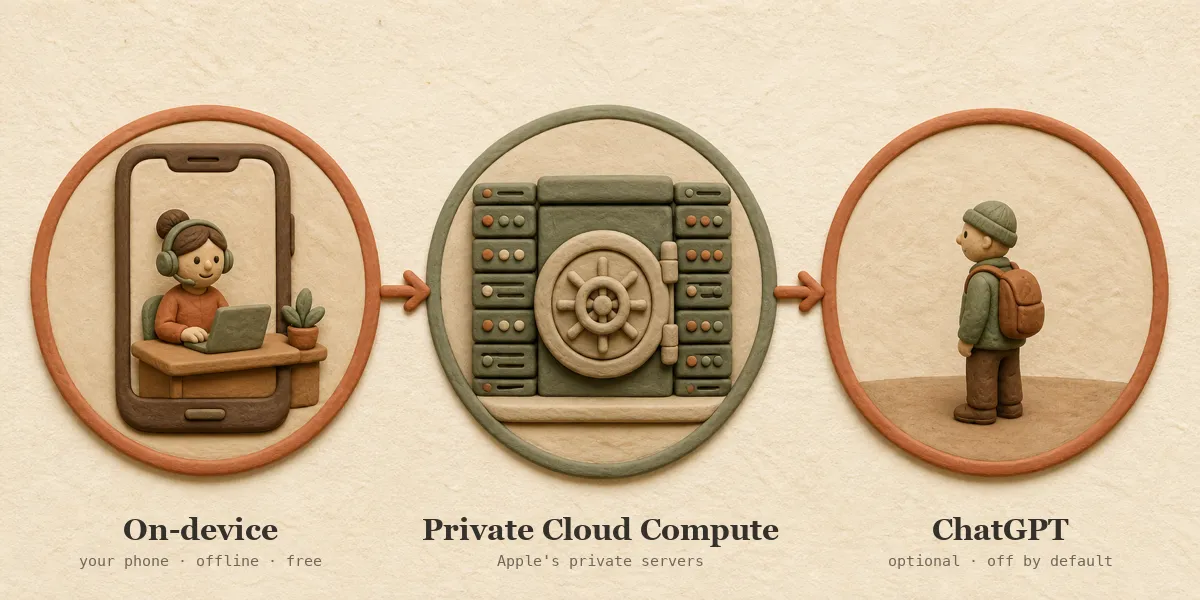
Apple’s own guide covers the mechanics. Here’s a concrete one to build in about five minutes: summarize whatever’s on my clipboard into three bullets.
- Open Shortcuts, tap + to make a new shortcut.
- Add the action Get Clipboard.
- Add the Use Model action.
- In the prompt field, type:
Summarize the following into three short bullet points:and insert the Clipboard variable after it. - Tap the model selector on that action and choose On-Device.
- Add a final Show Result (or Quick Look) action, then run it.
Copy any long paragraph, run the shortcut, and you get three bullets back. Because you picked On-Device, it runs with Wi-Fi and cellular switched off (every step in this shortcut stays local). Swap the model to Private Cloud Compute when a prompt is too big for the phone, or to ChatGPT when you need outside knowledge. Same shortcut, different backend, you decide the tradeoff.
An offline loop worth wiring up
Here’s the part I want to experiment with next, offered as a fun thing you could build rather than something I’ve road-tested for months.
An NFC tag (a cheap sticker with a tiny chip) can trigger a Shortcut when your phone taps it, set up as a Personal Automation. Stick one on your desk. Tap it, and the automation runs the On-Device summarize-clipboard shortcut from above. NFC scanning happens locally and the on-device model needs no network, so as long as every step in the shortcut stays local, the whole loop (tap the tag, the model runs, you get an answer) should run with no connection at all. A physical trigger wired to a local model, nothing leaving the device. That’s the kind of thing I find worth tinkering with.
Apps already building on this
The reason a Shortcut can run a model for free is the Foundation Models framework (Apple’s Swift interface that lets any app call the same on-device model, offline, with no per-request bill). Part 3 and Part 4 covered how that works under the hood; the point here is that third-party apps already ship features on it.
From Apple’s September 2025 roundup, a few concrete ones:
- Stoic and Gratitude (journaling) generate personal prompts and weekly summaries from your own entries, on-device.
- Stuff parses plain language like “call Sophia Friday” into a structured task; OmniFocus auto-generates projects and next steps and suggests tags.
Apple’s App Store editorial has also highlighted Kahoot turning handwritten notes into quiz questions on the on-device model.
If you build things, the entry points are Apple’s Foundation Models documentation and the WWDC25 session “Meet the Foundation Models framework.” Apple’s pitch is that you can add a feature in as few as three lines of Swift, and on-device inference costs you nothing to run.
A reality check
These features are useful, and they’re also imperfect, so it’s worth setting expectations. When Jason Snell and Dan Moren at Six Colors put the models through real Shortcuts tasks, they hit the rough edges: extracting an amount from a receipt sometimes came back as “20949” instead of “209.49,” and a text step occasionally needed a plain, non-AI cleanup pass afterward. Moren’s summary was blunt: “a not very bright assistant whose work I need to double check.”
That matches my experience. The on-device model is small, so it’s fast and private but not brilliant. For low-stakes jobs (summaries, rough drafts, tidying text) it earns its keep. For anything where a wrong digit matters, check its work.
What’s useful and what’s a gimmick
Your mileage will vary with your habits, but here’s what stuck for me:
- Genuinely useful to me: proofread and summarize in Writing Tools, notification and mail summaries, priority notifications, Clean Up on simple photos, and the Shortcuts Use Model action for automation.
- Fun but not load-bearing: Genmoji and Image Playground. I’ve made a few, laughed, and never opened them again.
- Depends on you: Visual Intelligence is handy in the moment but not something I reach for daily.
The pattern I keep noticing: the quiet, boring features (fix my text, condense my inbox) are the ones I actually kept. The flashy ones were a one-time novelty.
What’s next
Everything here is what you can do today, which is the floor, not the ceiling. Part 6 is where I make my predictions: where local AI is headed as the chips get better, why I think Apple gates the good stuff to premium hardware, and why it’s worth getting fluent in this now rather than later.
If you want the finale as it drops, the site has an RSS feed you can point your reader at.
Frequently asked questions
Do these features work offline? The on-device ones do (the local parts of Writing Tools like proofread and summarize, Clean Up, and a Shortcut set to the On-Device model all run with no network). Anything routed to Private Cloud Compute or the ChatGPT hand-off needs a connection.
Do I have to pay for any of this? No. Apple Intelligence is free on supported devices, and on-device processing has no per-request cost. Developers building on the Foundation Models framework also pay nothing for on-device inference.
How do I choose between On-Device, Private Cloud Compute, and ChatGPT in Shortcuts? On-Device for anything private or offline (it’s the default fit for most tasks). Private Cloud Compute when a prompt is too heavy for the phone but you still want Apple’s privacy handling. ChatGPT when you need open-ended world knowledge, knowing the request leaves Apple’s system after it asks you.
Which devices support this? iPhone 15 Pro and Pro Max, any iPhone 16 or later, iPads and Macs with M1 or later (plus the A17 Pro iPad mini). Memory is the real gate (8 GB, by most accounts). Apple’s 2026 list adds newer hardware.
Is the new personal Siri part of this? Not yet. The personal-context “Siri AI” is in beta as of mid-2026, with general release expected this fall alongside iOS 27. Part 2 tells that story.
Sources
- Apple Intelligence is available today, iOS 18.1 (Apple Newsroom, October 2024)
- Image Playground, Genmoji, Visual Intelligence, iOS 18.2 (Apple Newsroom, December 2024)
- iOS 18.4 with priority notifications (MacRumors, March 2025)
- Apple Intelligence new capabilities, WWDC 2025 (Apple Newsroom)
- Use Apple Intelligence in Shortcuts (Apple Support)
- Using NFC tags to trigger Shortcuts (MacMost)
- Foundation Models framework unlocks new app experiences (Apple Newsroom, September 2025)
- Kahoot on the App Store (Apple App Store editorial)
- Foundation Models framework (Apple Developer Documentation)
- Meet the Foundation Models framework (WWDC25, session 286)
- Experimenting with Apple’s AI models inside Shortcuts (Six Colors, June 2025)